install linux in windows without VM
The Windows Subsystem for Linux allows you to run GNU/Linux environment which includes most Linux command-line tools, utilities, and applications directly on your Windows system without any modification or overhead on the host system.
One pre-requisite is already installed Windows Server 2019. Lucky enough, we have a guide on the
Step 1: Enable Windows Subsystem for Linux (WSL) feature on Windows
Before you can install any Linux distribution for WSL, you must ensure that the “Windows Subsystem for Linux” feature is enabled:
Open PowerShell as Administrator and run the following command to enable Windows Subsystem for Linux (WSL) feature on Windows.
Enable-WindowsOptionalFeature -Online -FeatureName Microsoft-Windows-Subsystem-Linux
Agree to restart your computer when prompted.

You can do the same from the Server Graphical Interfaces Server Manager>Add roles and features>Select features
Step 2: Install your Linux Distribution of Choice
There are various ways in which you can install WSL Linux distros via the Microsoft Store. In this guide, we will use download and install one from the Command-Line.
Launch PowerShell and download the distro with use Invoke-WebRequest
curl.exe -L -o ubuntu-1804.appx https://aka.ms/wsl-ubuntu-1804
After the download, extract and install a Linux distro.
Rename-Item ubuntu-1804.appx ubuntu-1804.zip
Expand-Archive ubuntu-1804.zip ubuntu1804
Change your working directory to ubuntu1804 and run the installer to finish your distro installation.
cd ubuntu1804
.\ubuntu1804.exe
The installer will prompt you to provide username and password for the UNIX user to be created.
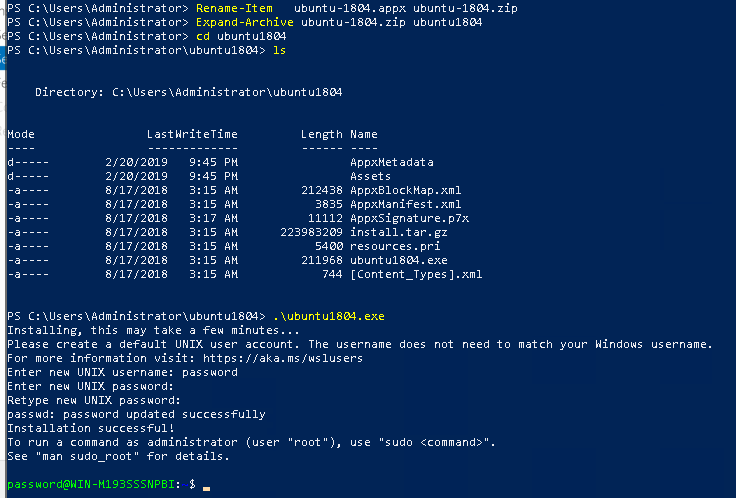
The sudo command can be used for privileged operations.
sudo apt update && sudo apt upgrade
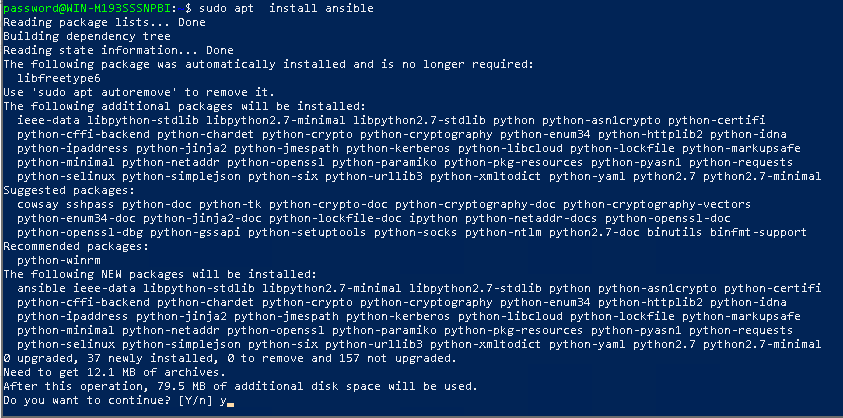
sudo apt install ansible
Sample output:
Add your distro path to the Windows environment PATH using Powershell:
$userenv = [System.Environment]::GetEnvironmentVariable("Path", "User")
[System.Environment]::SetEnvironmentVariable("PATH", $userenv + "C:\Users\Administrator\ubuntu1804", "User")
This will enable you to launch your distro from any path by typing the .exe launcher. For ubuntu1804.exe.
Note that this will require closing and relaunching PowerShell.
ubuntu1804.exe
See below
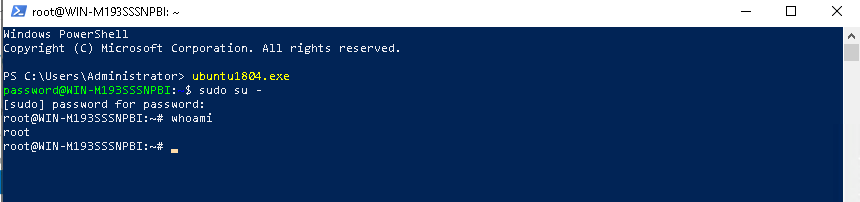
There you go!. Enjoy using Linux distribution on your Windows Server. Other Linux distributions that you can run are:
The process of installing any of these distributions is same as one for Ubuntu 18.04.
Comments
Post a Comment